Graduation Ceremony

Run smoother ceremonies with off-stage companion scanning, dual-side iPhone support, and real-time projector display for every graduate.

What is Graduation Ceremony?

Graduation Ceremony modernizes graduate announcements with fast QR scanning and real-time stage display. As each graduate walks, their QR code is scanned and the app instantly shows their name and photo on the projector for a polished presentation.

The macOS app powers your live presentation, and the Graduate Scan companion app lets your off-stage team scan confidently from iPhone.

App screenshot

Two Apps, One Workflow

Graduation Ceremony uses a simple two-app setup so your team can stay coordinated during live events.

Graduation Ceremony (Mac app)

Runs the ceremony and controls what your audience sees.

  • Displays each graduate's name and photo live on the projector.
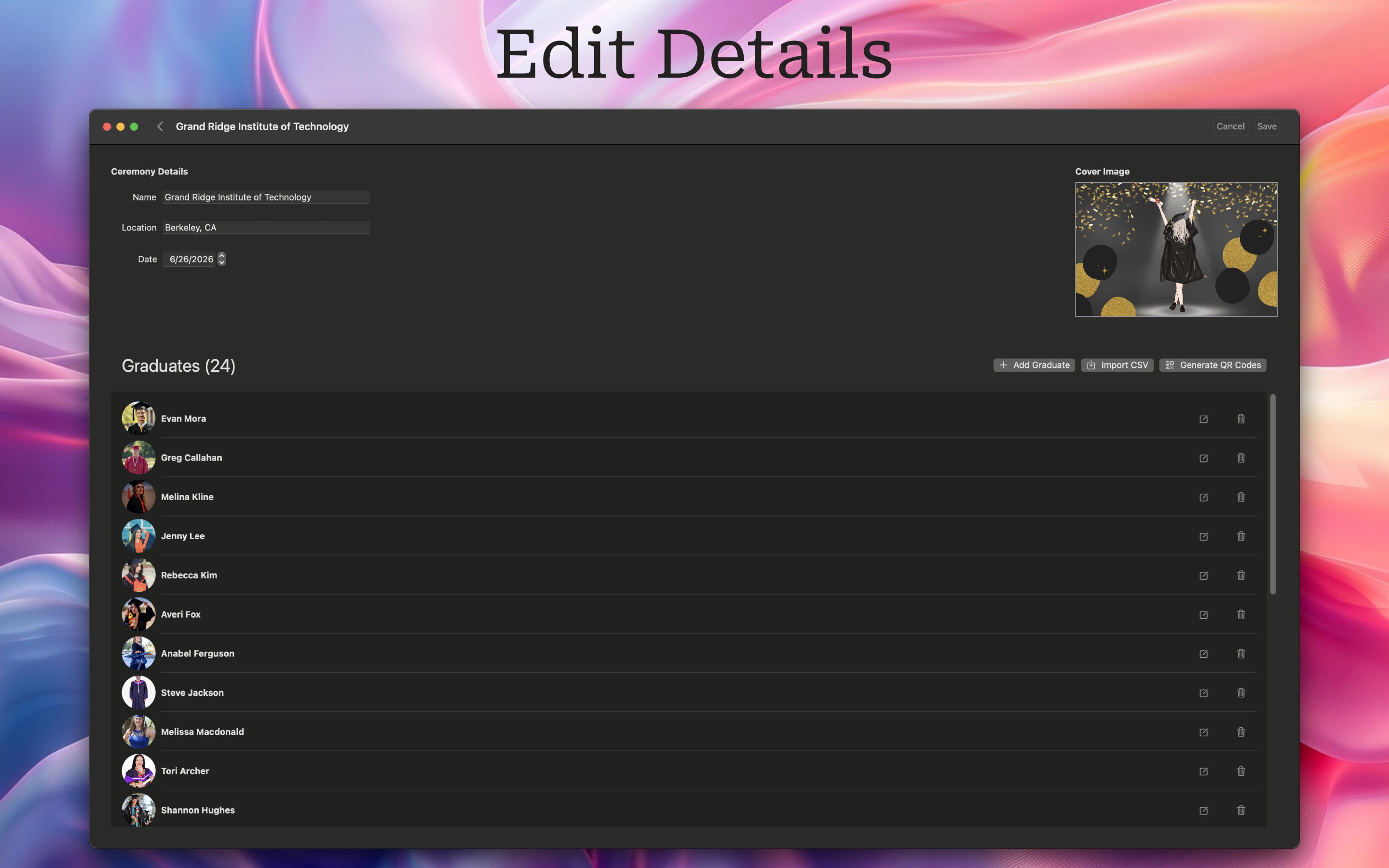
  • Imports graduates from CSV and matches photos by file ID.
  • Supports optional pronunciation shown during presentation.
  • Delivers smooth transitions in presentation mode.
Download Graduation Ceremony on the Mac App Store

Graduate Scan - Companion App (iPhone)

Keeps scanning off stage and sends each graduate to the Mac app in real time.

  • Scans graduate QR codes quickly from iPhone.
  • Lets your team stay mobile and out of sight of the audience.
  • Supports two iPhones for both sides of the stage.
  • Helps maintain steady ceremony flow with less delay.
Download Graduate Scan Companion App on the App Store

How to Use Graduation Ceremony

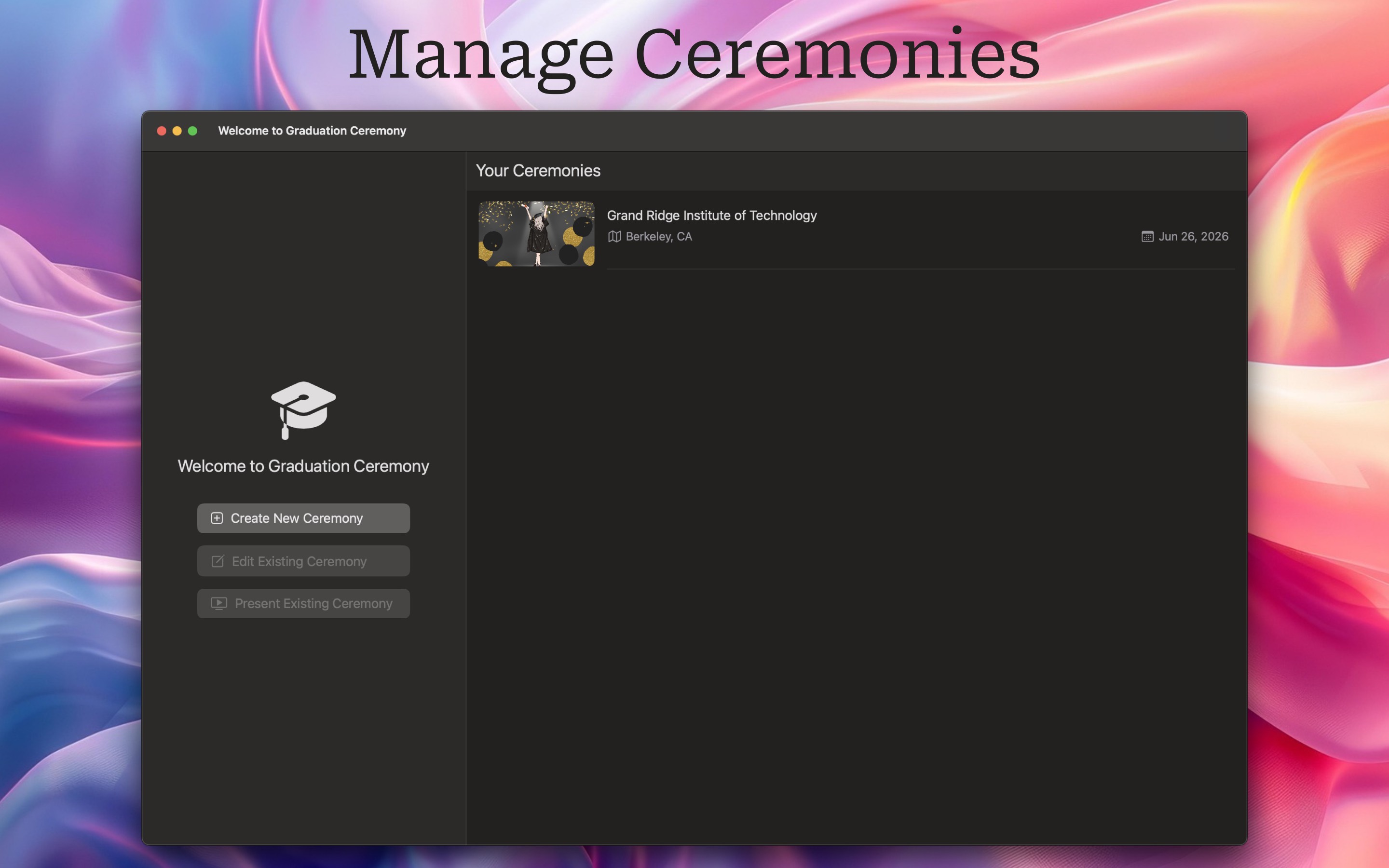
  1. Step 1: Create a Ceremony
    Launch the app and set up a new graduation ceremony. Step-by-step screenshot
  2. Step 2: Import Graduates
    Upload a list of graduates via CSV or manually add them. Download sample CSV file Step-by-step screenshot
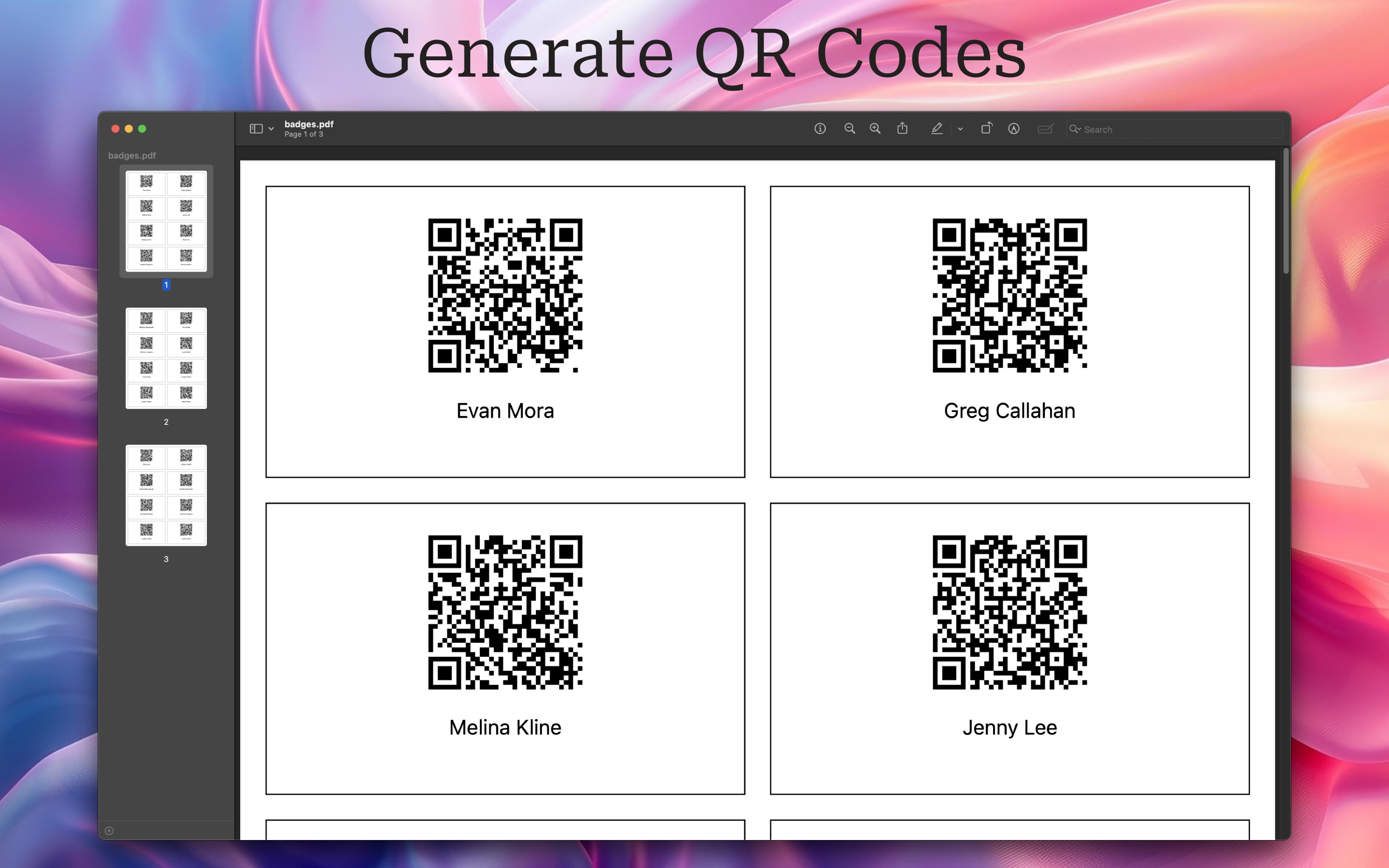
  3. Step 3: Generate QR Codes
    Print unique QR codes for each graduate. Step-by-step screenshot
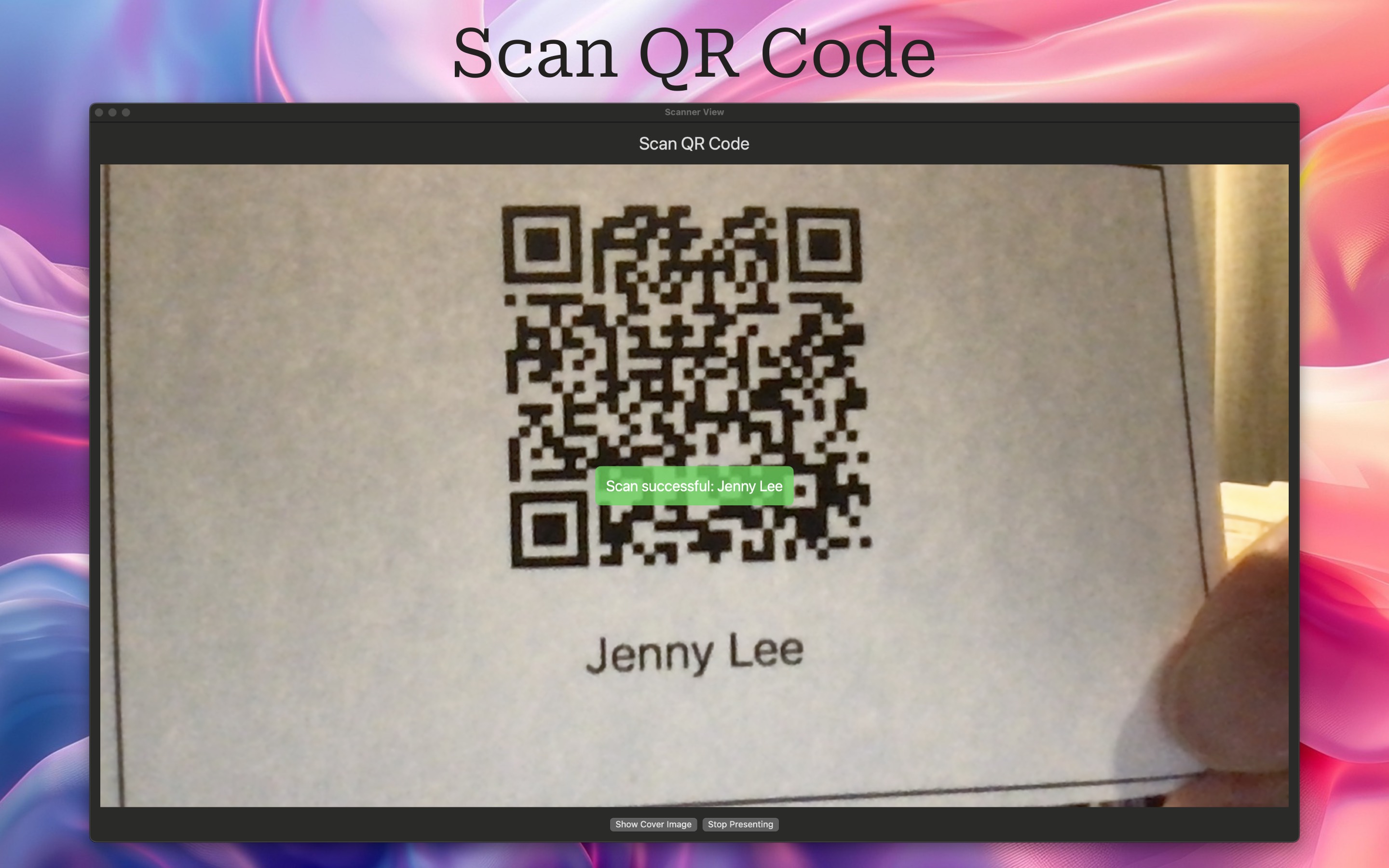
  4. Step 4: Scan the QR Codes
    Use your Mac's camera to scan a graduate's QR code as they walk across the stage, or use Graduate Scan - Companion App on iPhone for off-stage scanning. Step-by-step screenshot
  5. Step 5: Project Graduate Details
    Their name and photo will automatically display on the projector. Step-by-step screenshot

Get Graduation Ceremony Today